
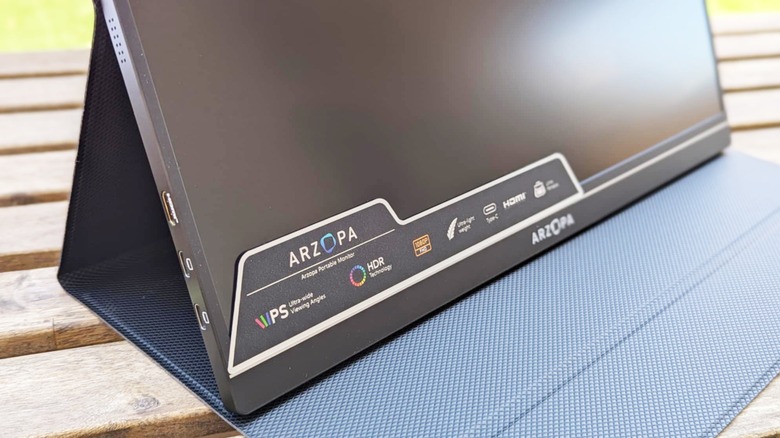
Arzopa portable monitors are popular for their sleek design and versatility, making them a go-to choice for gamers, professionals, and travelers. However, seeing a “No Signal” message on your Arzopa monitor can be frustrating, halting your productivity or gaming session. This issue is common but often easy to fix with the right steps. In this article, we’ll explore why your Arzopa monitor might display “no signal” and provide simple, actionable solutions to get it working again. For expert tips and reliable troubleshooting guides, visit Authentic Red Creative for more tech insights.
Understanding the “No Signal” Issue
A “No Signal” message means your Arzopa monitor is powered on but not receiving a video signal from the connected device. This can stem from various causes, such as loose cables, incorrect settings, or compatibility issues. Identifying the root cause is the first step to resolving the problem. For a detailed guide on tackling this issue, check out Authentic Red Creative’s troubleshooting steps for the Arzopa monitor no signal problem. By following a systematic approach, you can quickly diagnose and fix the issue.
Common Causes of the “No Signal” Error
Before diving into solutions, let’s explore why your Arzopa monitor might show a “No Signal” message. Understanding these reasons will help you troubleshoot effectively.
- Loose or Faulty Cables: A loose or damaged HDMI or USB-C cable can prevent the monitor from receiving a signal.
- Incorrect Input Source: If the monitor is set to the wrong input (e.g., HDMI instead of USB-C), it won’t detect the signal.
- Insufficient Power Supply: Arzopa monitors often require a stable power source, and low power can cause signal issues.
- Incompatible Display Settings: If your device’s resolution or refresh rate isn’t supported by the monitor, it may not display.
- Hardware or Software Issues: Outdated drivers, firmware, or hardware malfunctions can disrupt the connection.
Now that you know the potential causes, let’s move on to practical solutions to fix the “Arzopa monitor no signal” issue.
Simple Solutions to Fix the “No Signal” Issue

Follow these step-by-step solutions to resolve the problem. Start with the simplest fixes before moving to more advanced troubleshooting.
Check and Secure Cable Connections
Loose or damaged cables are a common culprit behind the “No Signal” error. Begin by inspecting your HDMI or USB-C cables for any visible damage, such as fraying or bent pins. Ensure the cables are firmly plugged into both the monitor and the source device, such as a laptop or gaming console. If possible, try a different cable to rule out a defective one. Additionally, if you’re using an adapter (e.g., USB-C to HDMI), verify its compatibility with your device. A secure connection often resolves the issue instantly.
Select the Correct Input Source
Your Arzopa monitor may have multiple input options, such as HDMI, USB-C, or DisplayPort. If the wrong input is selected, the monitor won’t detect the signal. Use the monitor’s on-screen display (OSD) menu, typically accessed via buttons on the side or bottom, to cycle through input sources. For example, if you’re using an HDMI cable, ensure the monitor is set to HDMI mode. Refer to your Arzopa user manual for specific instructions on navigating the OSD menu.
Ensure Adequate Power Supply
Arzopa monitors require sufficient power to function correctly. If you’re powering the monitor via a USB-C connection from a laptop, the port may not provide enough power, leading to a “No Signal” message. Try connecting the monitor to a high-power USB-C charger (at least 5V/2A) or a wall adapter. Some users report success by using both an HDMI cable for video and a USB-C cable for power, as noted in discussions on Reddit’s tech support community. This setup ensures the monitor receives stable power.
Adjust Display Settings on Your Device
Incorrect display settings on your source device can cause signal issues. On a Windows PC, right-click the desktop and select “Display Settings.” Scroll to “Multiple Displays” and choose “Extend these displays” or “Duplicate these displays.” Click “Detect” to ensure the Arzopa monitor is recognized. On a Mac, go to “System Preferences > Displays” and check if the monitor is detected. Additionally, verify that the resolution and refresh rate are compatible with your monitor’s specifications, typically 1920×1080 at 60 Hz for most Arzopa models.
Update Graphics Drivers and Firmware
Outdated or corrupted graphics drivers can prevent your device from sending a signal to the monitor. On a Windows PC, open “Device Manager,” expand “Display Adapters,” right-click your graphics card, and select “Update Driver.” Choose “Search automatically for updated driver software.” For Mac users, ensure your macOS is up to date via “System Preferences > Software Update.” You can also check for firmware updates for your Arzopa monitor on the official Arzopa website. Follow the instructions there to download and install the latest firmware.
Test with a Different Device
To isolate the issue, connect your Arzopa monitor to another device, such as a different laptop, gaming console, or smartphone. If the monitor works, the problem lies with your original device’s settings or hardware. If it still shows “No Signal,” the issue may be with the monitor or cables. This step helps narrow down the cause and determines whether you need to focus on the monitor or the source device.
Perform a Factory Reset
If the above steps don’t work, resetting your Arzopa monitor to factory settings may help. Unplug the monitor from the power source, press and hold the power button for 10 seconds, then reconnect the power and turn it on. This process resets the monitor’s settings, potentially resolving software glitches. Note that this will erase any custom settings, so you may need to reconfigure the monitor afterward.
Check Device Compatibility
Not all devices support video output via USB-C, as some USB-C ports lack DisplayPort Alternate Mode (DP Alt Mode). Check your device’s specifications to confirm it supports video output. For example, some newer MacBook models with Thunderbolt 5 ports have compatibility issues with certain monitors, as discussed in Apple Community forums. If your device doesn’t support DP Alt Mode, use an HDMI connection instead.
Advanced Troubleshooting Tips
If the basic solutions don’t resolve the “Arzopa monitor no signal” issue, try these advanced steps.
Power Cycle the Monitor and Device
Turn off both your Arzopa monitor and the source device. Disconnect all cables, wait for 30 seconds, then reconnect and power on both devices. This power cycle can refresh the connection and resolve temporary glitches.
Check for Interference
Electronic devices like cordless phones or wireless routers near your monitor can cause signal interference. Move the monitor away from such devices and test the connection again. Ensuring a clear environment can improve signal stability.
Contact Arzopa Support
If none of the above solutions work, the issue may be a hardware malfunction. Contact Arzopa’s customer support at support@arzopa.com for professional assistance. Provide your monitor’s model and serial number to expedite the process. They may offer additional troubleshooting steps or arrange for a repair or replacement.
Preventing Future “No Signal” Issues
To avoid future signal problems, follow these preventive measures:
- Use High-Quality Cables: Invest in reliable HDMI or USB-C cables to ensure stable connections.
- Keep Drivers Updated: Regularly update your device’s graphics drivers and monitor firmware.
- Store Properly: Protect your monitor from physical damage by storing it in a carrying case when not in use.
- Check Compatibility: Before purchasing, verify that your device supports the monitor’s connection requirements.
Read More Also: Why PrestaShop Website Development Is the Best eCommerce Solution for SMEs in 2025
Conclusion
A “No Signal” message on your Arzopa monitor can be frustrating, but most issues are fixable with simple troubleshooting. Start by checking cables, selecting the correct input source, and ensuring adequate power. Adjust display settings, update drivers, and test with another device if needed. For persistent problems, a factory reset or contacting Arzopa support can help. By following these steps and preventive tips, you can enjoy a seamless experience with your Arzopa portable monitor.
Frequently Asked Questions
Why does my Arzopa monitor say “No Signal” even when connected?
This usually indicates a loose cable, incorrect input source, or insufficient power. Check connections, select the right input, and ensure the monitor is powered adequately.
Can a faulty USB-C adapter cause the “No Signal” issue?
Yes, an incompatible or defective adapter can prevent signal transmission. Try a different adapter or use a direct HDMI connection.
How do I know if my device is compatible with my Arzopa monitor?
Check your device’s specifications for DisplayPort Alternate Mode (DP Alt Mode) support if using USB-C, or confirm HDMI compatibility.
What should I do if my Arzopa monitor still shows “No Signal” after troubleshooting?
Contact Arzopa support at support@arzopa.com with your monitor’s model and serial number for further assistance.
How can I prevent “No Signal” issues in the future?
Use high-quality cables, keep drivers and firmware updated, and store the monitor properly to avoid physical damage.
About the Author


